Category Archives: Blog

Fake Anti-Virus software: It’s time to fight back!

scareware


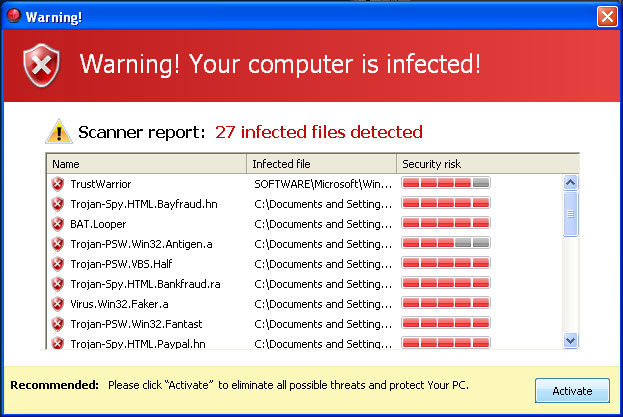
For many people, computer viruses inspire just as much fear as real world infectious diseases. A computer virus pokes holes in electronic security defenses and pries open the virtual padlock you have around your personal data. Fake anti-virus software sometimes known as scareware, alert you to nonexistent viruses on your computer and prompt you to download malicious software that masquerades as the real deal. Fake anti-virus software presents itself as a serious risk. Here are some steps you can take to remove counterfeit software if you accidentally fall victim to the scam.

If you have the time searching for solutions online could be the best way to find an answer. The internet offers all kinds of tutorials and how-to advice for computer security issues, including fake anti-virus removal. Type the name of the fraudulent software program into a search engine to find out whether other people have faced the same problem before. If so, this information might offer useful solutions for removal. You should however pay careful attention to the spelling of the name. Scam artists often mimic the major brand names of legitimate anti-virus software programs by replacing letters to trick their targets. During your computer search, place quotes around the name of the fraudulent program to receive targeted results.

Everyone likes free. Find a free fix. Although free anti-virus programs are not as sophisticated as their premium counterparts, these programs have become increasingly more efficient over the last decade. In fact, major organizations like PC World Magazine comparatively attributes the 2011 drop in fake anti-virus software alerts to the convenience of free protection programs. Each year, anti-virus companies add new features to increase the strength of anti-virus freeware. If you can’t find a reliable source of information to remove fake anti-virus software from your computer, download and install a free anti-virus program. Run a full scan on your computer to decide whether the free software will remove the threat.

In some cases free anti-virus software lack the power to remove fake programs. To avoid the hassle and headache you should just buy a paid program and run another scan. Not only can this type of software remove the current problem, but paid software in most cases protect against future threats. Paid anti-virus software, such as Bitdefender Antivirus Plus and Kaspersky Anti-Virus, scans your computer for the latest threats and are rated for business use. These anti-virus programs strip the fake anti-virus program from your computer so you no longer have to worry about compromised data, financial loss or data theft.

Lastly once you remove fake anti-virus software from your computer, it is best to learn to recognize the signs for future reference. Fake software programs often use threatening language to increase the sense of urgency for you to make decision. You might see pop-ups in your internet browser that claim you have a virus or that your computer is infected. DO NOT rely on or reply to the pop-up windows or other unfamiliar alerts. Instead, run your anti-virus software to figure out whether a real threat exists or not. If you don’t have anti-virus software installed, open a fresh window in your browser and directly type in the name of a site you trust to download the software yourself. Visiting a site directly is much safer than clicking on a link that might take you to a fake imitation.

Fake anti-virus software works so well because the creators capitalize on their victims’ embedded fears. However, if you protect yourself by installing safe software and keeping your existing anti-virus software up-to-date, viruses and other malicious programs will become less fearsome letting you fight back against the dreaded scareware.

virus_protection

How-To: fix my Email Account

stressed_office_workerAre you having any of these problems with your email account?


  • Won’t send
  • Won’t receive
  • Keeps asking for username or password
  • Receive weird pop-up errors in Outlook

The ability to receive, download, and open emails and attachments in your email is crucial to your business. Emails can have attachments that can contain invoices, memos, and other important business documents. If you have ever had trouble sending an email you know how frustrating it can be. If you are having any of these problems, in this How-To I will explain how to diagnose these issues.

First turn off your computer and leave it off for at least 30 seconds. This will give the memory time to clear, and your computer time to reset. Simply doing a restart can help but a complete shut down and startup will fix some problems.

If you are still having problem it is best to check all of your settings. Check your settings and then check them again. Settings should be in ALL lower case. This includes your email account name and your POP and SMTP server names. If you are unsure about how to input these settings Apex IT Solutions offers customer support.

Pay close attention to these items:

  • POP Server
  • SMTP Server
  • Account name
  • Account Password

Next, check your virus scan software. Open up the software you use to check emails for viruses and double check the settings. Some software can be set to check outgoing email for viruses, and this could be causing you problems if you use email stationery, graphics, or attachments when you send emails. Try telling the software not to scan outgoing mail. Remember outgoing only.

What if your problem is that you can’t receive emails anymore. Well if you are not receiving any error messages and this happened it could be that your mailbox is full. Login to your control panel, click the email icon, click add/remove accounts and click “Show Disk Space Used”. This will show the quota and disk space used for each mailbox in your account. If you use webmail, delete old messages and empty your trash to free up some space. You can also increase your quota. When either of these conditions are met, email will start to get delivered again. Messages are not lost, but residing in queue waiting to be delivered.

If you can’t send emails maybe you don’t have your outgoing mail server set to authenticate email. First open your email program and go into the email account settings. Find the outgoing mail server settings and make sure it is checked to authenticate email. If it is not checked, check it and try sending mail again.

Lastly, if you are using Windows XP as your operating system you may need to download and install Service Pack 3. Click here to read about Service Pack 3 from Microsoft.

Although I have given lots of ways to look into your email issues they may not fix all of your computer related problems. If any of your problems continue always consult your IT support team to further diagnose the issue.

Spring Cleaning for your smartphone?

samsung_spring_cleaningSpring cleaning is for more than just your home. Even mobile devices can benefit from an annual cleanup. In this article I will talk about how clean out those “cobwebs” in your phone increasing productivity, security, and time management.

It is extremely important to make updates and upgrades to your mobile devices. When it comes down to it if you are behind on your operating system in your phone you are missing out on a lot of security opportunities and enhancements especially if you are an iOS user. iOS typically releases an update every few months which are small and have smaller features. Without downloading these upgrades and updates you really lose a lot of the functionality on the device as they continue to upgrade and release new features. With Android phones if they were purchased more than two years ago they may have a difficult time being able to run the latest Android version. Samsung and some other third party smartphone may not even support the latest Android operating system. These are great things to think about and insure you are taking care of at least periodically and spring is the perfect time to do that.

In today’s market were apps and information can be downloaded in the click of a button and easily left in the “back of the closet” it is important to use this time of year to delete unwanted apps and clear junk data from your devices. Insuring the only things you have on your device are apps and information that you access on a daily basis can dramatically improve the performance on your phone. Each of these apps especially with Android can or could be running in the background which will take up CPU, memory and storage space on both Android and iOS. This can also drain your battery faster and leave you with a “brick” instead of a useful device. Here are some questions you should ask about the unwanted apps on your mobile devices:

  • Are they constantly communicating to the outside world?
  • Are they asking for updates?
  • Are they running advertisements?
  • Are they excessively using up my data?
  • What documents have people taken onto their device with the app? What exposure do they open up for the company?

It is a good idea for anyone who uses there phone business and pleasure to organize it. For many business people the whole point of their phone is so they can use them for everything in their life. A great way to separate work from pleasure is to secure and isolate your corporate data from your personal apps and information. For example if you are a user of Dropbox, you do not want your personal account taking your corporate information and moving it over to Dropbox. You do not want your corporate emails accidentally sent through your personal Gmail or other personal email account.

It is important to use the very best apps to increase productivity.  Apps are increasingly becoming sources of corporate security weaknesses due to poor data storage practices, malware, unauthorized access, lack of encryption, and data leaks from syncing. For corporations it is important to use Mobile Application Management system. With a Mobile Application Management system you can receive protection for your corporate apps. You reduce the risk of sensitive data leakage, you’re provided with on-device access control and compliance, you can perform selective wipe on apps, provided with administrative controls and graphical reports. If this is not a viable option for you, here are some tips you should you when downloading apps for business use:

  • Avoid questionable apps
  • Research, research, research
  • Make sure the App offers user support

Keeping mobile operating systems and apps up to date is easy enough for even non-technical consumer users. It just has to be made a habit, much in the way spring cleaning is a habit in many homes. Now use this time to go clean up some mobile devices.

How to turn off the Clutter feature in Office 365

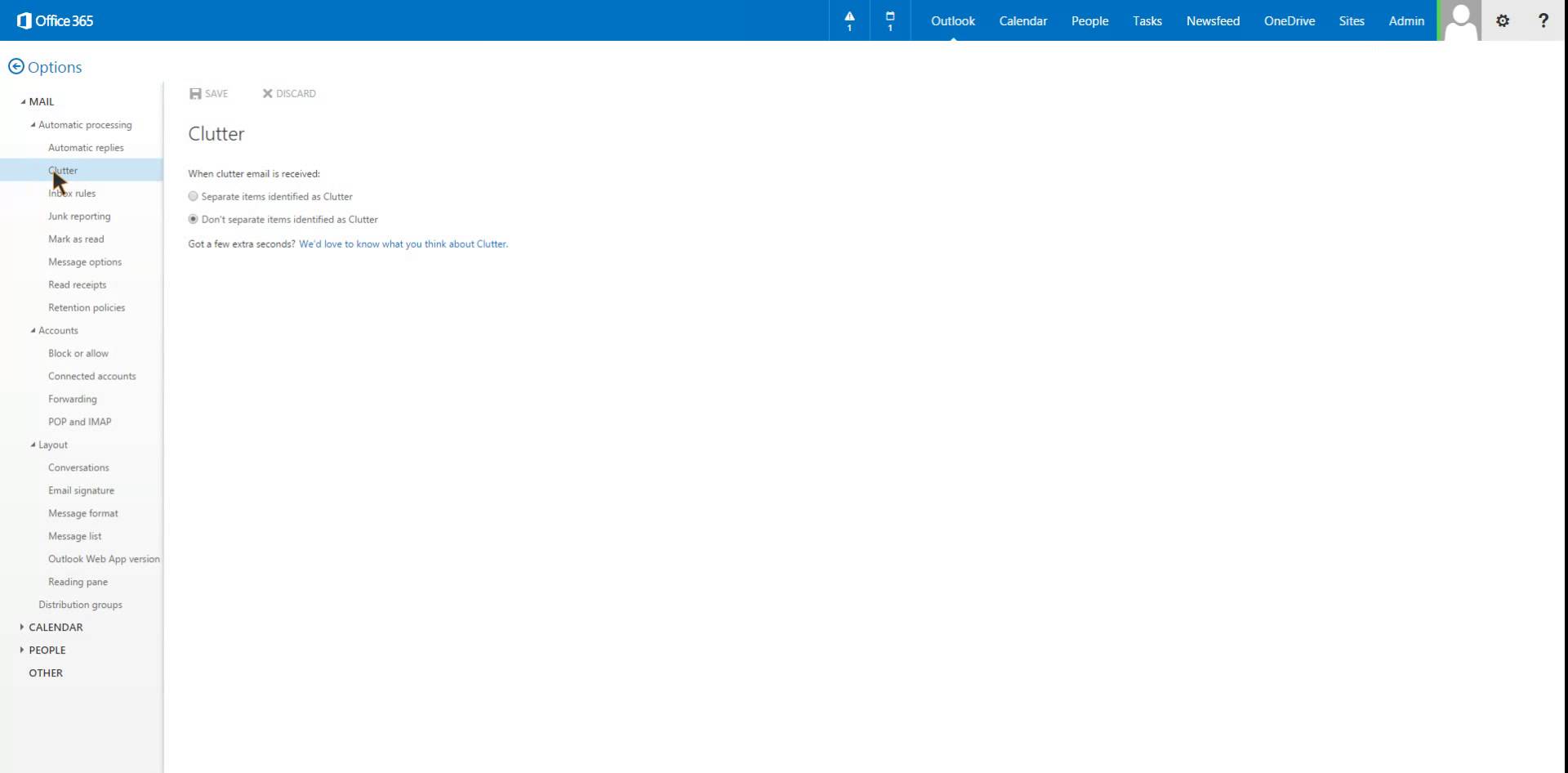
Microsoft recently released a new feature called clutter. According to Microsoft Clutter is designed to help you focus on the most important messages in your inbox. It uses machine learning to de-clutter your inbox by moving lower priority messages out of your way and into a new Clutter folder. Ultimately, Clutter removes distractions so you can focus on what matters most. Unfortunately for some users clutter isn’t working the way it was designed to. In this How To I will explain you how to turn off the Clutter feature in Office 365.

microsoft clutter

  • Open office 365
  • Login into account
  • Click on the Office 365 settings drop down
  • Scroll down to the options section and click it. It should be the 7th one from the bottom
  • On the left side there will be a main selection called MAIL and underneath some sub sections. The third one down is titled Clutter. Click on Clutter
  • Under Clutter you have the options to “Separate items identified as clutter” or “Don’t separate items identified as clutter
  • Click “Don’t separate items identified as clutter” to prevent your emails from being moved
  • Click Save


Unfortunately once the Clutter feature has been turned off, all emails that were sent to that folder will not automatically go back to into your inbox folder. Each email will need to be manually moved into the desired folder.

Here are some FAQ and answers to common Office 365 Clutter questions:

Will Clutter start working immediately?  Yes, once it is enabled for a mailbox. It takes time for a good set of signals to be collected for Clutter to learn what is important to an individual user. You can help accelerate the process by acting as a form of “manual Clutter” just after the feature is enabled by moving items into the Clutter folder or by marking messages as Clutter. Clutter will learn from your actions and will begin to mimic them as new mail arrives. In general, the more messages you mark or move, the more evidence you provide for Clutter to analyze and the quicker it will be in understanding how you process email. It’s also fair to say Clutter might require to observe how you process a couple of hundred messages before it is really useful.

What administrative controls exist for Clutter?  The current implementation is a user-initiated function. In other words, all users have to enable or disable Clutter in the Options menu. There is no way for an administrator to enable or disable Clutter for a selected mailbox. Also, Clutter only works for user mailboxes. It doesn’t work for shared mailboxes or group mailboxes.

What will end up in the Clutter folder?  The simple answer is any message that is determined by Clutter to be unimportant based on its understanding of your priorities. In reality, it will differ from person to person because everyone processes their Inbox differently.

What about Junk mail then – isn’t Clutter just another form of junk mail processing?  Not at all. The decisions made to mark messages as Junk Mail come from a massive collection of known spam that Microsoft has built over time. That effort to identify and classify the characteristics of spam from new mail continues but the decisions that result are generic and apply to everyone. Clutter is very personal because machine learning takes the signals provided by the mailbox owner and use them to decide whether a message should be moved into the Clutter folder.

Ergonomics – Comfort you will feel

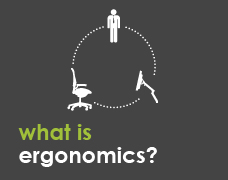
uncomfortable_at_workNobody likes to feel uncomfortable especially at work. When you are uncomfortable it is hard to think straight and limits you from being able to accomplish your daily task. Spending too much time in poor positions can start to have a bad effect on your health. Ergonomics is all about arranging are environments so we can be comfortable and safe at work. The right equipment helps but you don’t have to spend a fortune. Small changes can make a big impact. In this article I will explain some ways to help you improve your office and your health.

Posture is important.  When your body is in proper alignment you feel better which means you can work better. This is referred to as a neutral body posture. Your feet should be flat on the floor, or on a foot rest. Your knees and thighs are level or slightly lower than your hips. The small curve in your lower back is supported. Your shoulders and elbows are relaxed and resting at your sides. Your hands wrist and forearms are straight and parallel with the floor. Your head is level and facing forward.

When it comes to office chairs one sizes does not fit all. Adjustability is the key to comfort. Raise or lower the chair height so your feet are flat on the floor. If your chair does not go low enough then you should get a foot rest. Your feet should be slightly forward from the knees. You should sit with your hips as far back in the chair as possible. There should be a couple of inches gap between the chair and your knees. If the seat is too deep and you don’t have another chair you can use a lumbar wedge or pillow. There should also be a couple of inches between the outside of your thigh and the side of the seat. If you have a co-worker available ask them to adjust the seat back while you sit in it. This way you will know immediately when the fit feels right. Some chair offer adjustable lumbar support but if not a lumbar support or pillow will work just fine. The lumbar support should mimic the natural curve of your back for maximum comfort. If you use the arm rest your shoulders should be relaxed and not stooped over. If the arm rest get in your way, lower or remove them.

what _is_ergonomicsUsing a computer keyboard is much like play a piano. Using the proper body posture helps prevent injuries and improves your technique. Your hands wrists and forearms should be level with your forearms. If you have a keyboard tray make sure it is at the right height so that your wrist are in a straight line with your arms. Your elbows should rest comfortably at your side around a 90 degree angle. Your keyboard tray should be level or slightly tilted down. This helps your wrist stay straight and in line with your forearm. A wireless keyboard offers the most flexibility. If the keyboard has legs do not use them. If your desk does not have a keyboard tray, adjust the height of your chair or desk height leaving your arms and wrist in a neutral position. Choosing a wireless mouse gives you the most flexibility. Choose a mouse that fits your hand comfortably and keeps your fingers relaxed and slightly curved. Place your mouse close and level with the keyboard. If your keyboard has a palm rest, know that is just that, a place to rest your palms and should not be used for support while you type or enter data.

Being stuck in your seat is not fun but it’s also not healthy for you. At work it’s a good idea to stand up and move every half hour. Take walking breaks or visit a co-worker instead of instant messaging. If your job involves lots of sitting or you’re uncomfortable sitting for 30 minutes or less, a sit/stand station might help. A well designed sit/stand station should accommodate many different users and should be easy to adjust. If possible, try a few models before you commit. Remember to change your position often. Standing in one spot and be just as uncomfortable and unhealthy as too much sitting.

To recap, avoid sitting in the same position for long periods of time. Move around your office your get a desk that allows you to work in the standing and sitting position. Adjust your chair to achieve neutral body posture. Take short and frequent breaks to rest and re-energize. Adjust your keyboard to prevent injuries and improve your technique. Lastly, find a mouse that fits comfortably in your hand.

USB Type C: One port to control them all


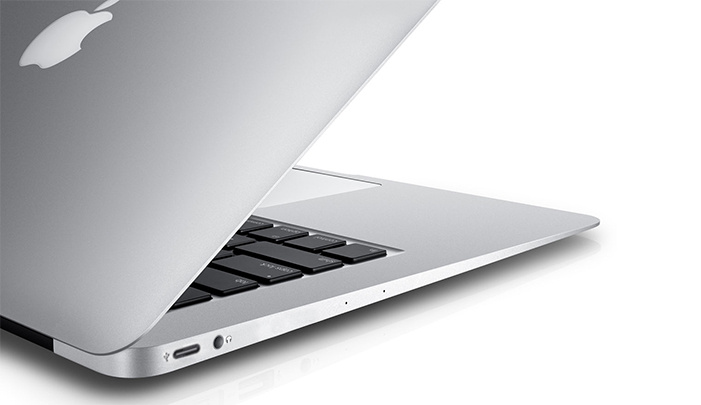
apple-macbook-air-type-cApple unveiled their new MacBook and with it is ushering in a whole new technology which will potentially affect all computer users. It’s called USB type C. With that here are the four things every user needs to know about USB type C.

First, it’s a USB specifically USB 3.1. One of the many benefits of USB 3.1 is that is offers enough power to charge your laptop as well as any other devices that relies on power from USB with a USB adapter. No more going out a buying five different cords to charge five different devices. No more cord clutter. USB 3.1 is a one stop shop.

Second, UBS 3.1 offers a huge increase in data transfer speeds. The speeds are expected to double the current standard on most devices. This means you can backup and restore your files faster than ever before. No more sitting around waiting for large files to transfer.

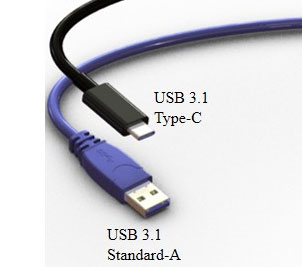
Third, USB type C is reversible. With Type C both ends of the cable are the same allowing for reversible plug orientation so you never need to worry about plugging it in upside down again.

Lastly, USB type C is going to be everywhere not just on Mac’s. USB IF has more than 757 partners according to their website. Major companies like Acer, Dell, Samsung, Asus, and Motorola just to name a few. With that being said we can expect this standard to come to many different devices like smartphones, tables, laptops, desktops, and other devices or peripherals.

usb_type_c_closeup_2

If you look around your office chances are you will find many devices equipped with USB cables. The USB connectors are most likely type A or type B. These connectors are mostly large, bulky, and in some cases fragile. USB type A is the original design for the USB standard with a flat and rectangular shape. On a standard computer you see this connector for desktop keyboards, laptops, media players and others. Type B is the on the other in of the standard. You typically see this cable on peripheral devices such as a printer, cellphone, or external hard drive.  USB type A and B have been by three major things. Type A and B have been limited by their transfer speeds and power delivery.


Apple Releases Update for OS X Flaw


19gstixhhbz2hpng

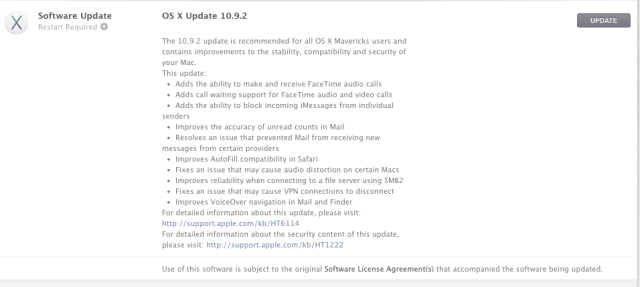
An Apple spokesman has confirmed that an update has been released for the OS X flaw.  The 10.9.2 update addresses SSL in OS X Mountain Lion and OS X Mavericks.  On affected machines, you might see the lock icon in your browser search bar closed – giving you a false sense of security.  Your Apple may be affected even if you are unaware.

To receive the update, open up the App Store on your Mac and it will fid the update.   The complete article from Gizmodo is here http://gizmodo.com/the-fix-for-apples-scary-os-x-security-flaw-is-here-1529636089


BackupBuddy Review

backupbuddy-580x580


Have you ever needed an application to backup your WordPress website?  BackupBuddy can be used backup and migrate to a new server.

The following review from wphub will walk you through download and installation, backing up your website and restoring your website on the new server.  There are step-by-step directions and helpful hints.

http://www.wphub.com/plugins/backupbuddy-review/


Google fiber coming to city near you.

Google just announced that it’s bring their super fast internet & TV service to 34 new cities around the US.  The service offers speed up to 1Gbps, which is more than 100 times faster than an average broadband speed in the US.  With more and more content available online the demand for the service is there.  The idea behind the service is to provide more choices to customers and offer up some competition to the existing providers.  In the end the competition will be good for consumers, and will force the competition to provide better service at competitive rates.

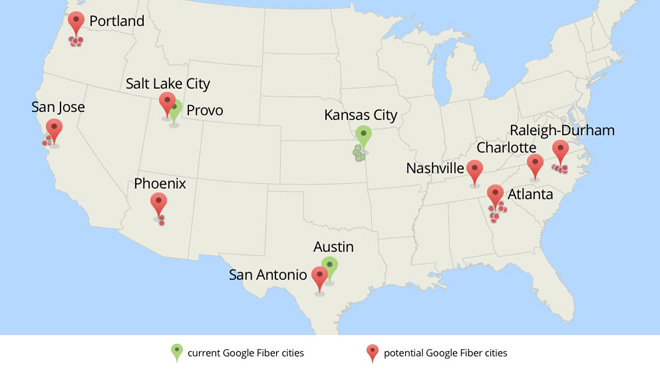
Google started offering the service in 2011 starting with 3 cities – Kansas City, Missuri; Austin Texas; & Provo, Utah.  Now 34 more cities in 9 different communities will be lucky to have the service.  Unfortunately, Southern California is not on the list.  The cities include: Raleigh-Durham, Atlanta, GA.; Charlotte, NC; Nashville, TN.; San Antonio, TX.; Phoenix, AZ.; Salt Lake City, UT; San Jose, CA.; and Portland, OR.

Google fiber rollout new cities 2014

Google fiber rollout new cities 2014

In order to quality cities have to fill out applications and agree to cooperate with the roll out.   Cities have to provide detailed maps of the existing conduits, water, gas & electricity lines. They will also provide access to telephone poles.  I wish the service will come to orange county, CA soon.

You can’t argue with the price either. Basic 5Mbps service is free, and the 1Gbps service is just $70 per month. For additional $50 they’ll throw in 200HD channels and you can record up to 8 programs at a time.  This sure beats anything that’s being currently offered by any other provider.  The best service out there is Verizon FIOS but even that doesn’t come close to the speed and price of Google fiber.

iPhone 6 Rumored to Feature 4.7-inch Screen

Apple-iPhone-5S-2

iPhone 6 rumors have hinted Apple is preparing to introduce a larger screen to it’s upcoming release.  Reports out of Taiwan have now suggested the Cupertino-based company has opted for a 4.7-inch panel.


It has been suggested that the iPhone 6 will upgrade to a 4.7 inch screen, this increase would still make Apple’s phone smaller than the continually growing Android phones.  According to the latest rumors, the imminent HTC One 2 will host a new 5-inch panel while the Samsung Galaxy S5 and Xperia Z2 are expected to offer up to 5.25-inch displays.


The iPhone 6 is expected to be released in Q3 of 2014.  The complete article is available  from Trusted Reviews at http://www.trustedreviews.com/news/iphone-6-rumoured-to-feature-4-7-inch-screen