Deprecated: Function WP_Dependencies->add_data() was called with an argument that is deprecated since version 6.9.0! IE conditional comments are ignored by all supported browsers. in /home4/skiterr/public_html/apex/wp-includes/functions.php on line 6131

Category Archives: Blog

The Benefits of Hosted Microsft Exchange

hosted-exchange


The advantages of outsourcing Microsoft Exchange to the cloud.

Microsoft Exchange is an email server solution from Microsoft that works extremely well for the small business as well as the enterprise.  Some of the great features of Microsoft Exchange is the ability to synchronize your email, contacts and tasks across multiple devices.  Every email you send or receive, every calendar appointment you make will synchronize with every device that’s configured with a Microsoft Exchange account. Whether you’re on a PC or MAC, Android or iPhone, all your emails & contacts will always be in sync.  There are other features, but that’s for another time.

Because Microsoft Exchange Server is such an important part of any business, it is critical to keep it up and running at all time.  Any down time could mean lost worker time, lost email and potentially lost business.  This is where hosted Microsoft Exchange service comes in.  Here are the major benefits of having a hosted exchange service, instead of having one onsite in your office.

  • Deployment cost  – No need to purchase any hardware of software.  You only pay a small monthly for the licenses you need.
  • Up time – By outsourcing the exchange service to a hosting company, you take advantage of their infrastructure, which includes reliable power sources with diesel generators, secure facility, and fire suppression systems.  No need to worry about anyone breaking in or an unforeseen circumstance such fire or flood.
  • Redundant Internet – Multimillion dollar datacaenter come equipped with state of the art internet connection from multiple vendors.  Things like outages don’t exist.  The internet at these facilities will always be on.  When was the last time the internet connection at your office went down?  How much lost productivity did you encounter?  How many customer emails bounced back to sender?
  • Maintenance –  maintenance is a very time & resource intensive task.  All needed maintenance is included with your hosted exchange account.
  • Upgrades – Hosted services will upgrade your exchange as part of their overall upgrade strategy. No need buying additional software or licences. No need to spend a weekend at the office upgrading the most important peace of your infrastructure.

If you would like more information about hosted exchange or other cloud solutions, contact Apex IT Solutions, Inc at (800-275-6513.
Locate lost Android phone or tablet & wipe all data – Android Device Manager

How to locate your lost or stolen android device & wipe it remotely.

Are you worried about losing your phone or tablet.  What if someone steels it.  What about all of the files that are stored on it. All of us use the phone for more than just making phone calls and texting friends. The phone is an extension of our office.  We store important documents, emails, contact & confidential information. Recently Google created the service called “Android Device Manager”. You can install it as an app on your android device, or access it from your pc here: https://www.google.com/android/devicemanager

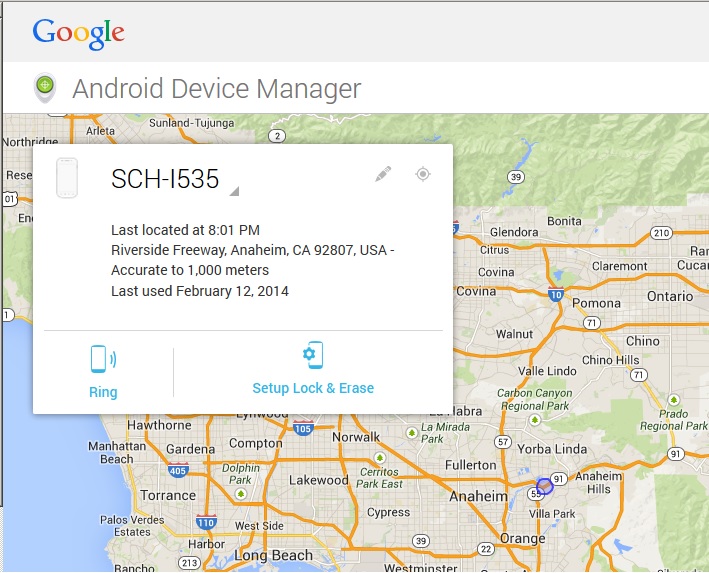
To use the device manager you’ll need to log in using the Google account that’s associated with your device.  You don’t even have to install any software on your phone or tablet.  Select the device you’d like to locate and click the locator icon.  Click on “ring” to have your phone ring at full sound level for 5 minutes.

web browser view android device manager map from PC

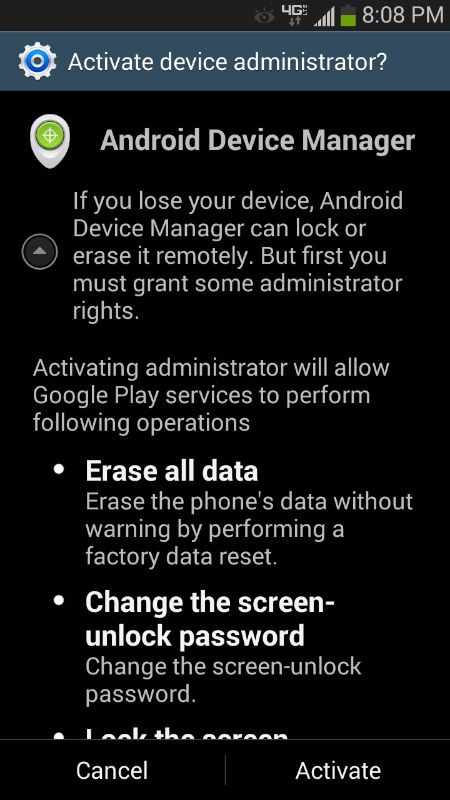
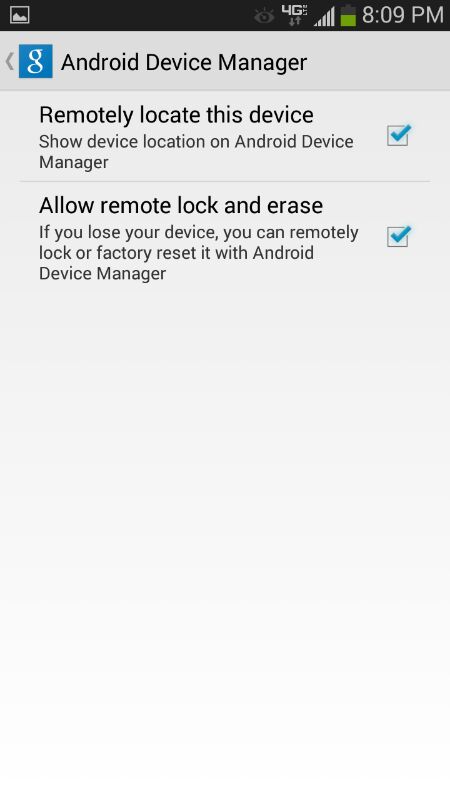
Setting up lock & erase requires that you setup your phone before you lose it. So you should do at at soon as possible.  Clicking on “setup lock & erase” will send a message to you phone that will enable the features.  First you’ll need to select the service that you wish to enable, then activate.

android device manager permissions locate lock erase  android device manager activate


I’ve tested the ring feature and for the most part it works within a few seconds and the phone rings as promised.  There is no phone call actually being made, the phone is just told to start ringing. Hitting any button will silence the ringing.  The lock/password reset feature works as advertised.  I was able to successfully set the password through the web interface, and the new password took affect almost immediately.

Everything I’ve done through web interface on the PC can also be done using the Android Device manager app that can be installed from the google play store.  This is a great feature for locating your lost deviced on the go, or locating your kids.


SanDisk Ultra Dual USB Drive Review

sandiskultrausbdrive1_galle-100245944-gallery

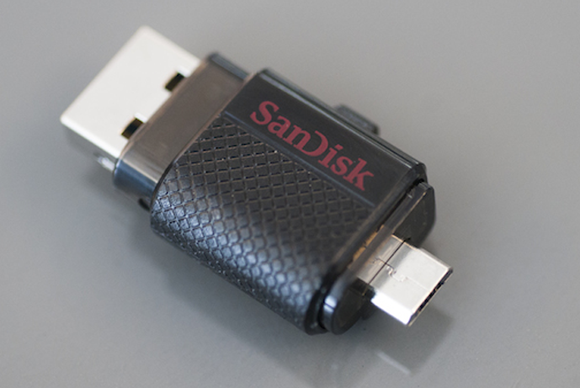
Looking for an easy way to transfer files between your PC and Android device or vice versa?  There are many ways to transfer; SanDisk has created an easy solution with the SanDisk Ultra Dual USB Drive.


Here’s a review of the pros and cons from PC World’s Review .

Pros

  • Has both Type A and Micro-B USB plugs
  • Very small
  • Great file manager


Cons

  • Speed-limited USB 2.0 interface
  • Tiny lanyard hole
  • You might need to remove your phone’s case

How to Turn Off Notifications for Individual Android Apps

application-manager-on-android-phone

Want to take control of what applications you’re receiving notifications for?  Is there an app that is annoying you with a constant interruption?

This guide from Techverse will help you take back control of these interruptions.

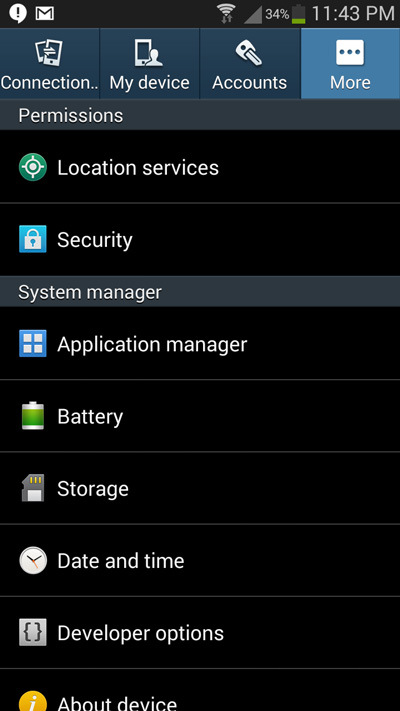
Step 1: Go to your phone’s Settings and navigate to the Apps or Application manager option ( Differs with different manufacturers )

Step 2: Inside the Application manager menu, Swipe from the right to the left and navigate to the ALL tab. Now you will be able to see a list of apps that are currently installed on your Android phone.

Step 3: Tap on any of the apps for which you want to disable the notifications. In the app info menu that opens up, tap on Show notifications to uncheck the option and tap on OK to confirm disabling notifications for that app.

That’s it!  You can repeat the following directions to disable any other app notification.

Dell Venue Pro 8 Review

Dell-Venue-8-Pro

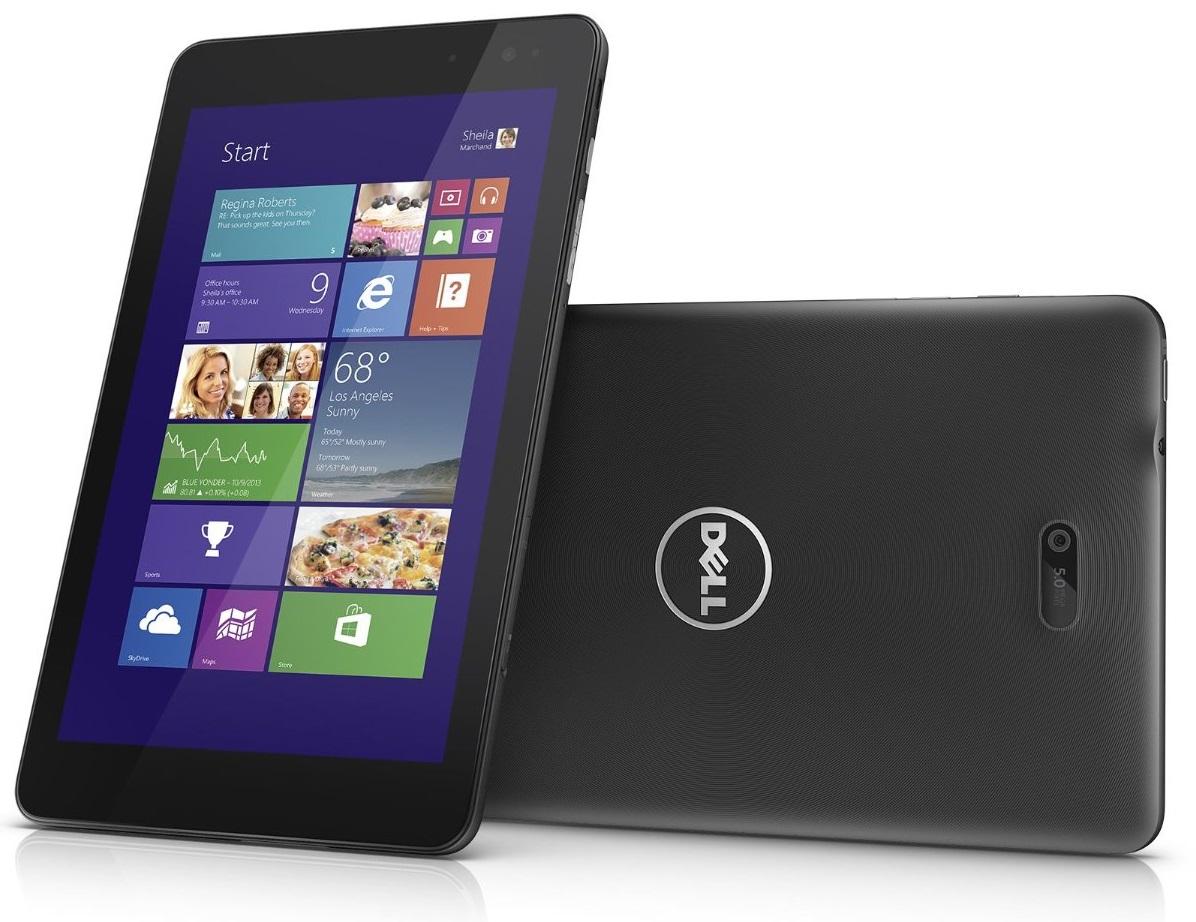
Dell Venue Pro 8 Review from trustedreviews.com

The Dell Venue Pro 8 tablet features a full version of Microsoft Windows 8.1 in an 8-inch tablet so you can enjoy the advantages of a full version of Windows without the bulk.  The tablet features excellent battery life and performance for a great price.

CPU: Quad-Core Intel Atom
Storage: 32GB
Screen: 8inch 1280 x 800
Thickness: 9mm
Bluetooth & WiFi

Pros:
Comfortable & good looking
Aweseome battery life
Hi res display

Cons:
Windows 8 & the home button
Requires special cable for USB support
No keyboard

For more information click here

Build an Ergonomic Home Office

step1_300


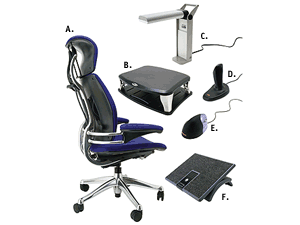
Whether you’re at the office or work from the comfort of you home, you need to make sure to be comfortable.  Sitting in front of the computer screen for 8 or more hours can be very strenuous on your body & mind.  Here are few things to think about when setting up your home office.  For the ultimate configuration you will need the following:
> Footrest
> Ergonomic chair
> Stretch/break routine
> Monitor stand or swing arm
> Ergonomic keyboard & mouse
> Anti-glare monitor

Picking the proper chair can be time consuming but in the end, it will be worth your time. After all, you’ll be sitting in for many hours. Good chair should be adjustable in all the critical directions and have good lumbar support.  At the very least you should be able to raise & lower the chair and be able to tilt it back and forth.  A good chair will cast anywhere from $200-$1000.

To eliminate eye strain, stiff neck muscles and headaches, the monitor should be placed directly in front of you, You shouldn’t have to turn or twist to view it.  Most monitors needs to be placed on a stand or a phone book to be at the eye level of the user.

For more information click here.

Attitude Is Everything

attitude

“The longer I live, the more I realize the impact of attitude on life.  Attitude, to me, is more important than facts. 

It is more important than the past, than education, than money, than circumstances, than failures, than successes, than what other people think, say or do.  

It is more important than appearance, giftedness or skill.  It will make or break a company… a church… a home.  The remarkable thing is we have a choice every day regarding the attitude we embrace for that day.  We cannot change our past… we cannot change the fact that people will act in a certain way.  We cannot change the inevitable.  The only thing we can do is play the one string we have, and that is our attitude.

I am convinced that life is 10% what happens to me and 90% how I react to it.  We are in charge of our Attitudes”

– Charles Swindoll –

Email Scam – Bank of America

Got the following email just the other day.  It cought my eye because that same day I did login to my BofA account.
Here a few simple ways to tell if the email is real or not:

1. The senders email address is “sprtlvr@yahoo.com” – shouldn’t the email come from something@bankofamerica.com?
2. The recipient’s email address is not my email address
3. The attachment with instructions – why attach instructions, instead of writing it out directly in the email

Remember, never open any attachments or click on any links from any institutions.  If you’re not sure, go to the bank’s website directly. If they did in fact sent you any information it will be available once you login.

———————————————————————————————————————————————————

From: “Bofa” <sprtlvr@yahoo.com> 
To:skirson@kirkland.com
Sent: Tue, Jul 16, 2013 09:12 AM
You have a new alert from Bank of America 

Dear Customer,

Protecting the security of our customers and the Bank Of America network , as a
preventative measure, we have temporarily limited access to sensitive account features.
 
Your online account has been temporary suspended after too many failed login attempts
have been made to your account. This is most likely an attempt to gain unauthorized
access to your account and/or personal information.
 
We thank you for your prompt attention to this matter. Please understand that this is a
security measure intended to help protect you and your account. We apologize for any
inconvenience.
 
Download the form attached to this email, and follow the instruction.

Useful Windows shortcuts for increased productivity

I’m not a huge fan of the mouse, I find inefficient, sometime inaccurate, but fore most: slow.  Using keyboard shortcuts can help productivity and eliminate frustration.  Below is the list of my most used Windows keyboard shortcuts. 

Open or close the start menu – <windows key>

Switch to a last open window – <alt>+<tab>

Open “my computer” (explorer) – <windows key>+<E>

Search for a file – <ctrl>+<F> or F3

Minimize all open windows – <windows key>+<D>

Open task manager – <ctrl>+<shift>+<esc>

Close the current window – <alt>+<F4> or <ctrl>+<W>

Permanent Delete – <shift>+<delete>

Lock computer – <windows key>+<L>

Refresh current window – <F5>

Select all items in current window – <Ctrl>+<A>

Undo last command – <Ctrl>+<Z>

Copy – <ctrl>+<C>

Cut – <Ctrl>+<X>

Paste – <Ctrl>+<V>

Move to the next item or check box – <TAB>

Select or deselect a check box – <spacebar>

Equivalent of clicking a selected item – <enter>

Open the run menu – <windows key>+<R>

Open a new window – <ctrl>+<N>