Tag Archives: How To

How to import photos from Android phones to Windows PC

When you click on your Android phone in Windows, you can either import photos from your cell phone or just copy them with the Windows File Explorer.  Copying the photos is easier and faster than using the Import option as importing scans folders other than your camera folder under certain circumstances. Here is how to use File Explorer to copy photos from your Android phone.

The process of copying your photos from your Android phone to Windows is as simple as connecting your phone to your computer and opening the File Explorer.  Note that Windows could download and install new software from your phone manufacturer.  If Windows does not recognize your phone when you plug it in, make sure the device is plugged in tightly, or look on your manufacturer’s website for missing software.  This will work 95% of the time with no intervention required. Some charging cables do not make a good connection as your phone becomes well-worn over time, so try another cable as well.

Below, are steps demonstrate how to copy photos using Windows 10 and a Nexus 4 Android 4.4.  The Camera folder might be in a different location for a Samsung or other manufacturers.

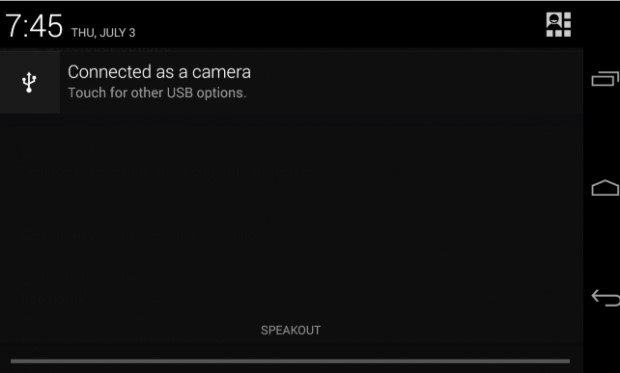
1. Plug the phone in to your computer, and in the notification screen at the top of the phone, it will say that the phone is either connected as a Camera or as a Media Device. Either option works for copying files.  To change the option, just click on it.

connected_as_camera

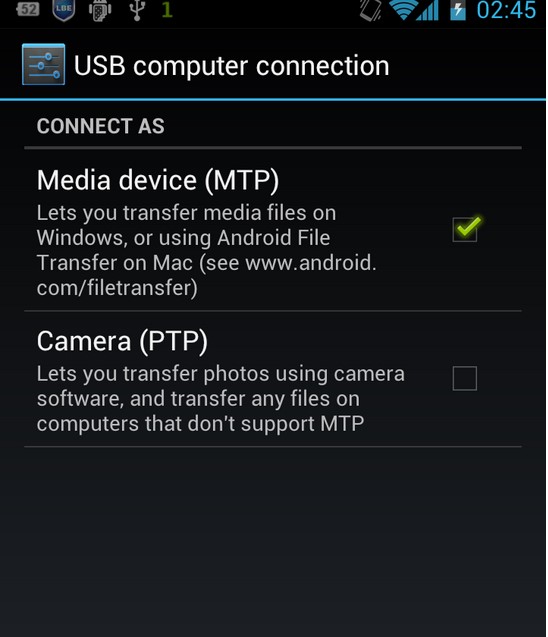
2. Pick connect as a Camera or Media device.

usb_computer_connection

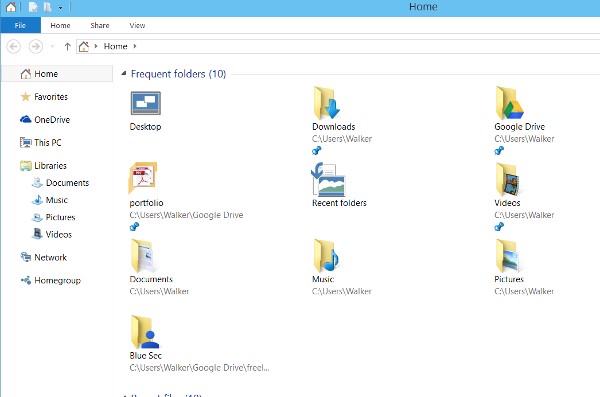
3. When you first open the File Explorer, you are in the home menu. Click This PC.

home


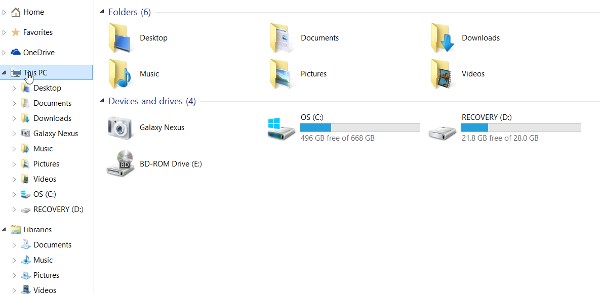
4. Click the device’s name. In this example. it says Galaxy Nexus


This_PC

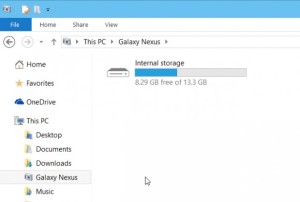
5. Click internal storage.

Internal_Storage

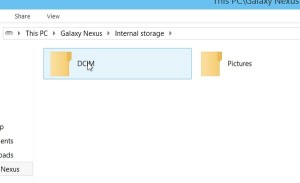
6. Click DCIM.

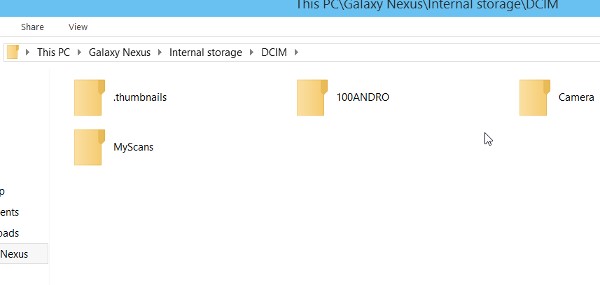
DCIM

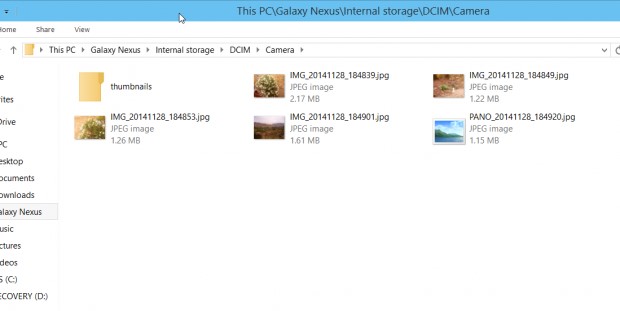
7. Click Camera.

Camera

8. Copy the files where you want them.  If you use Cut and Paste, it will delete them from the camera, too. You should do this if you want to empty the picture gallery so that the next time you copy photos to Windows you do not copy the same files twice.

Camera_2      

How To: Take a screenshot

Screenshots are a quick and efficient way to take a JPG snapshot of an application window or your entire display in seconds without the need to download any external software. Maybe you need to capture a scene from a video, email an image to a friend, or sharing your error message to tech support. Whatever your reason is the solution is only a couple of keyboard clicks away.


Using the default keyboard shortcuts
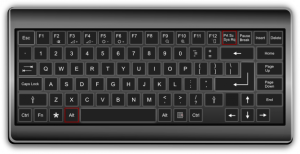
PrtScrnTaking a screenshot on Windows is one of the easiest tasks possible, regardless of which version of the operating system you’re running. There are only a few steps – assuming you haven’t fiddled with the innate keyboard controls – and you should already have access to all the image-editing software you need.

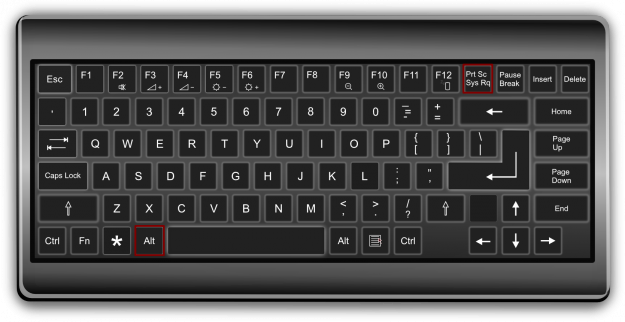
Step 1: Capture the image: Assuming the area you want to capture is displayed on your screen, press the Print Screen button typically located in the upper right-hand corner of your keyboard to capture a screenshot of your entire display. Alternatively, press Alt + Print Screen to simply capture a screenshot of the active window. Keep in mind there will be no noise or any other indication the screenshot was taken, but the resulting image will be saved as a PNG file to your clipboard. If using Windows 8 or Windows 10, simply click the Windows Key + Print Screen to automatically save a full-screen screenshot within the Screenshots folder of your picture directory.

Step 2: Open Paint: Click the Start menu, navigate to the Accessories folder (in Windows 10, the folder is called Windows Accessories instead) and click Paint from the list of native Microsoft software. The icon depicts a painting palette with a brush on the right-hand side, but it will vary slightly depending on your operating system. Alternatively, search and open the program from the Windows search bar. On Windows 8, press the Windows key to open the start screen. Afterward, click the down arrow in the bottom left, press Ctrl + Tab, or swipe downward from the center of the display to access the Apps View. From there, select Paint.

Step 3: Paste the screenshot: Once open, click the Paste button in the upper left-hand corner of the program, choose Edit then Paste, or press Ctrl + V on the keyboard to paste your screenshot. Again, the exact navigation and wordage will vary slightly from OS to OS, but the keyboard shortcut will remain the same.

Step 4: Save the screenshot: Perform any edits you want, such as cropping the image to a specified area, and click the main File option in the top-left corner. Afterward, select Save as, title the new file, choose a save location, and select your desired file format from the drop-down menu. For most purposes, JPG will do fine, but a variety of other formats are available to choose from such as PNG, BMP, GIF, and others. Click the gray Save button in the bottom right-hand corner when finished.

Using the Snipping Tool

The built-in screen capture utility in Windows is great, but it’s not the most robust or versatile when it comes to saving a snapshot of your screen. The Snipping Tool is another built-in Windows utility that has allowed users to better define and capture portions of their desktop display as a screenshot since the introduction of the program in Windows Vista. Aside from taking a screenshot of the entire screen and active window, the tool allows free-form outlines and rectangular screenshots for a more adjustable selection, as well as built-in annotation and sharing options. Snipping Tool Navigation

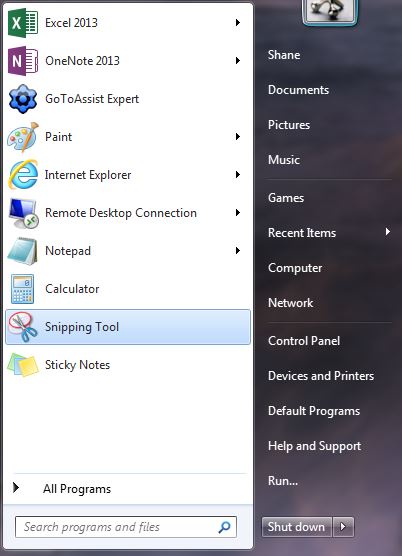
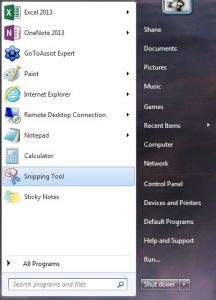
Step 1: Open the Snipping Tool: Click the Start menu, navigate to the Accessories folder (in Windows 10, the folder is called Windows Accessories instead) and select Snipping Tool from the list of native Microsoft software. The icon depicts a pair of blue scissors with two white ovals beneath. Alternatively, search and open the program from the Windows search bar. If using Windows 8, click the down arrow in the bottom left, press Ctrl + Tab, or swipe downward from the center of the display to access the Apps View. From there, select the Snipping Tool.
Snipping_pic

Step 2: Choose the snip type: Once open, click the down arrow to the right of New in the upper left-hand corner of the program window and select your desired snipping type from the list of drop-down options. The free-form snip allows you to draw irregular shapes, the rectangular snip specified-sized rectangles, the window snip the active window, and the full-screen snip the entire screen.

Step 3: Define the selection: Use your mouse or trackpad to manually define your screen-capture selection. Obviously, the full-screen snip and window-snip don’t provide a ton of leeway in terms of versatility and selection choice, but the latter will still require you to choose the appropriate window before continuing.

Step 4: Save the screenshot: Perform any edits you want, such as highlights or annotations, and click the main File option in the top-left corner. Afterward, select Save As, title the new file, choose a save location, and select your desired file format from the drop-down menu. If your screenshot includes text, you’ll notice increased clarity if you save in the .png file format, but you can check out our guide to different image formats to help you choose the best one for each case. If you prefer, you can click the envelope icon to directly email the screenshot as an attachment. Click the gray save button in the bottom-right corner when finished.
How-To Wipe your Devices

You should always wipe your drives, devices, and anything that potentially contained sensitive files before getting rid of it. Whether you are disposing of it, selling it, or giving it away. Securely erase your data first. This is necessary because it is possible to recover deleted files from many types of drives. The data is not always deleted from the drive.

USB Drives, External Hard Drives, and SD Cards

This is necessary for USB drives and external hard drives. Yes, even though your USB drive contains solid-state flash memory and even though your external hard drive might contain a proper solid-state drive — you need to worry about this. TRIM (a command that immediately clears old sectors on your drive) isn’t supported via the USB interface, which means someone could potentially recover sensitive files from an old USB drive after you get rid of it.

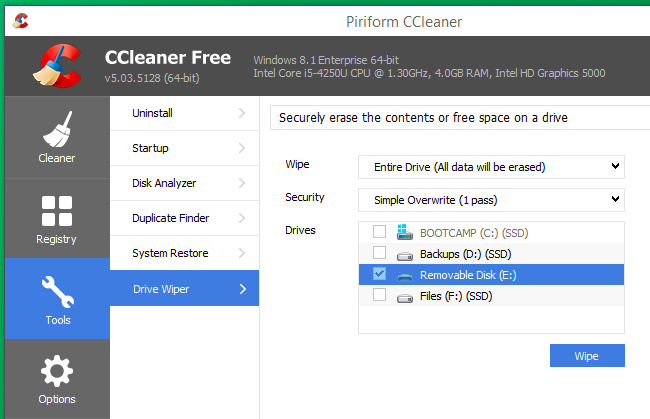
CCleaner driver wiperTo wipe an external drive on Windows, you can use one of many drive-wiping tools. CCleaner is a predominantly the easy one to use and you just need the free version. Insert the USB drive or plug in the external hard drive, open CCleaner, and use the Tools > Drive Wiper feature.

Bear in mind that this will reduce your drive’s lifespan, especially for cheap flash drives. But, if you are about to dispose of the drive this is fine.

On a Mac, open the Disk Utility application, select the drive in the list, and click the Erase heading. Click Security Options and tell it to erase the drive once, and then erase it.

On a laptop or desktop, your internal hard drives only need to be wiped if they’re mechanical hard drives or hybrid hard drives (most of your drives fall under this category). When you delete a file on a solid-state drive, the file is automatically wiped from the drive due to TRIM — this helps keep your SSD speedy.

On Windows 8 and 8.1, you can simply choose the “Reset your PC” feature and tell Windows to securely erase the drive. Choose the “Fully clean the drive” option to ensure none of your files can be recovered later.

Smartphones and Tablets

Apple’s iPhones and iPads use encryption, which means you can just reset them with the “Erase All Content and Settings” option and your personal data will be inaccessible. Any fragments of data are stored on the device in encrypted form, and no one can access them.

On Android smartphones and tablets, encryption has historically not been enabled by default. That means simply performing a factory reset will not help and sensitive personal data may be left on the phone’s internal storage.

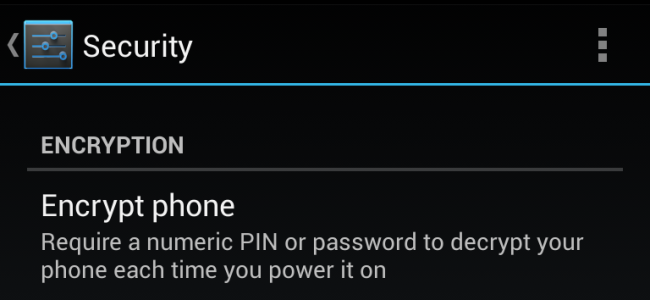
android_enable_encryptionTo securely wipe an Android phone or tablet, first go into its settings and encrypt the storage. You can then erase the device and restore it to factory settings. Because the data stored on the device was encrypted before you performed the factory reset, the data stored on the device will be scrambled and incomprehensible. If you have external memory, you can either remove the personal data or card itself. If you want to wipe it you can always plug in your phone to a computer and clean it using one of the above computer methods.

If you have a CD or DVD you want to remove sensitive files from, you can erase it if it’s rewriteable. Otherwise, be sure to physically destroy the CDs or DVDs before disposing of them. This could mean grabbing a pair of scissors and cutting them into one or more parts.

How-To troubleshoot browser issues – Part 2

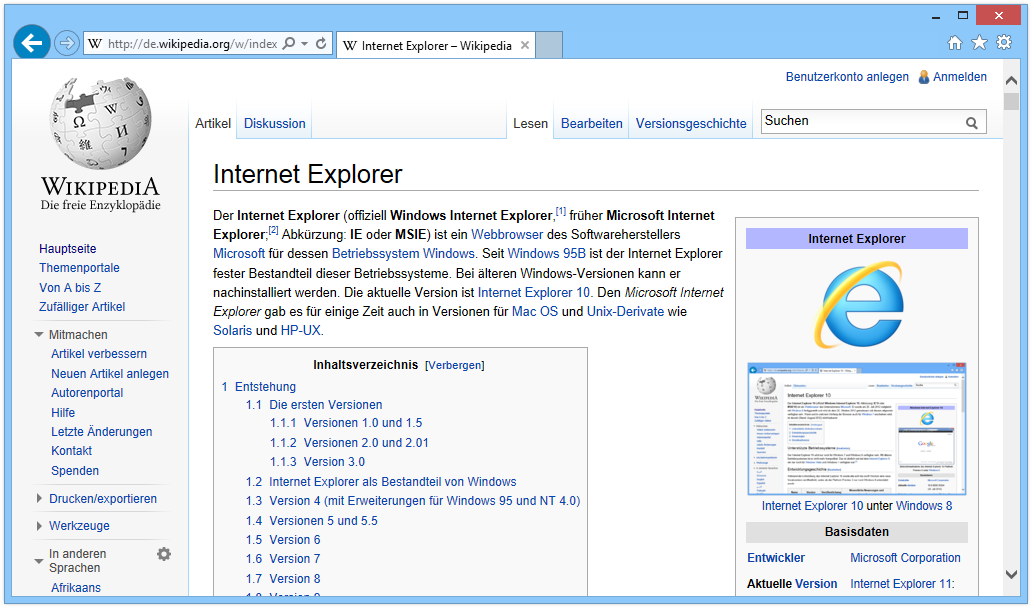
Internet_Explorer_11_unter_Windows_8.1Have you ever had problems with not being able to access a website, load information, or view documents through your browser?  Any problem that hinders your ability to get work done can be a pain. In the second part of this two part article I am going to explain how to harden your security setting in Internet Explorer.

In the past Microsoft has talked about the vulnerabilities in different versions of Internet Explorer (IE). However it is easy to protect IE from these types of actions. IE can be a very secure browser if you make it that way. Let’s discuss how you would go about doing that.

First you need to determine which version of IE you are running. To do that open your IE browser. Click on the either the Help icon on the top of your browser or look for the gear in the upper right hand corner of your browser and click it. Scroll down to the About Internet Explorer tab and click it. This will display what version of IE you are running. For this how-to I will be using IE 11 which is the latest version released to date. On the latest version there will be a box that says Install new versions automatically. On older version this was not there and caused a lot of problems for users who did not have their own IT department. A lot of users would be running older versions of IE which had a lot of security holes in them. If you keep this box checked you get the latest versions out. This is not a new feature. Other browsers like Google Chrome and Mozilla Firefox have had the same feature for years.

Now I’m go discuss how to harden your security settings. To access this, click on the gear in the upper right hand corner and click it. Scroll down to Internet Options and click it. If you were able to read the first article you know that this is the “under the hood” settings for IE.  This is where all of the changes will be made to IE.

Now that you are in Internet Options click on the Advanced tab which is the last tab on the right. Scroll down to the Security section which will have a padlock next to it. Next you need to scroll down to a box labeled Enable Enhanced Protected Mode. Enhanced Protected Mode allows you to use your browser without allowing any other sites to request access to your computer, download anything without your permission, or anything else with malicious code.

The next box you are going to want to check is Enable SmartScreen Filter. SmartScreen Filter is a feature that helps detect phishing websites. It can also help protect you from downloading or installing malware and other malicious software. AS you browse the web it analyses webpages and determines if they have any characteristics that might be suspicious. If it finds suspicious webpages it will display a message giving you an opportunity to provide feedback and advising you to proceed with caution.

The last thing I am going to discuss is the Security tab under Internet Options. This tab is the second tab from the left. Within this tab you will see a section that says Security level for this zone and underneath it has a sliding bar. This bar allows you to set the security level you want to operate on. For most of us Medium-high is sufficient. However if you want to change this setting. Scroll the bar up and it will change to High. Under the High setting, any website that requires you to run script this setting is going to protect you from and prompt you to see if you want to use the site. This will give you the highest level of internet security through your browser. If you change this setting it is also recommended that you change it under the Local intranet setting which is listed above under the Security tab. You should know that if you make this change and you want to go to a banking website or any ecommerce website they are most likely going to fail because you have restricted the access so much that the site isn’t able to use its security setting you verify you. If you want to keep these setting High but allow access to specific websites you can click on the Trusted sites icon and add those sites to the list. Click the Sites tab and under Add this website to the zone, type in the URL.

When making the decision to raise your security setting to High it is best to consult with your IT department first. Could you be raising the security too high and limit your ability to access sites that you use on a daily basis slowing down work production.

How-to troubleshoot browser issues – Part 1

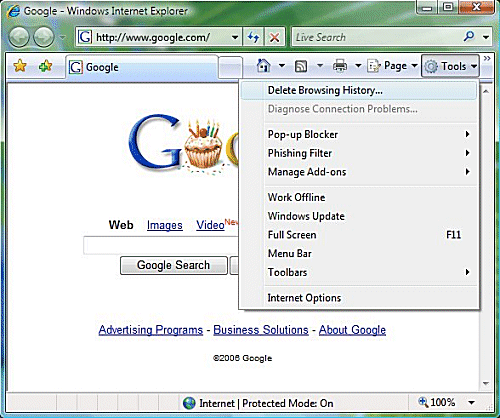
IE7_options Have you ever had problems with not being able to access a website, load information, or view documents through your browser?  Any problem that hinders your ability to get work done can be a pain. In this two part article I am going to explain the features within Internet Explorer and how to troubleshoot browser issues.


So you can’t access a website? No problem. When this happens in some cases it is due to some security settings being placed too high. Sounds simple enough right? Not exactly. Without understanding the problem often it’s difficult to find a solution.

In Internet Explorer (IE), in order for you to “get under the hood” and find out what’s wrong you have to go to Internet Options. To find it, open Internet Explorer=> click on the tools button (it should look like a gear in the upper right hand corner for IE 9 users) => nine spaces down you’ll see Internet Options=> click it.

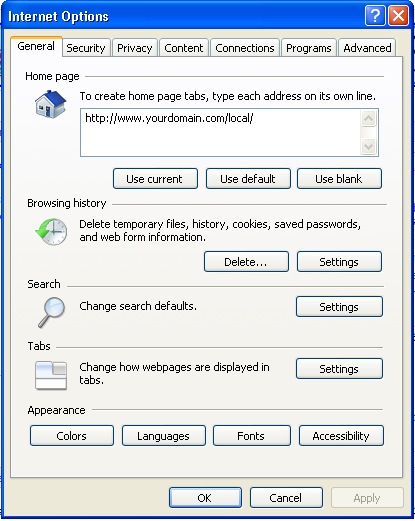
Right now you should see a menu called Internet Options. I won’t discuss every feature here because that would make for an extremely long article. With that said, under General settings the first thing you will see is the Home page. In this box you can change your Home page so when you first open IE it will display whatever URL you choose. If you would like to have more than one tab open up on startup just type in the additional URL underneath the current one. The next section below Home page is Browsing history. Within Browsing history you can click Delete browsing history on exit, which will clear your history once you close all tabs in IE. Next you have Search. This is a vast topic which will not be covered in this article. Along the bottom there are some appearance and languages options.

If you click the next tab to the right you will see Security. This is a tab you shouldn’t really touch unless you’re reading an IT support article or a support technician is walking you through steps within Security. The same can be said about the next tab Privacy. By default the Pop-up Blocker should be on. If not you should click the box labeled Turn on Pop-up Blocker. The next tab over is Content. If you have kids or have sites that would not like your employees to access Parental Controls can be useful. The following below is Content Advisor. Content Advisor is a tool that helps you control internet content that’s viewed on the machine. Again this can be a very useful tool if you have a device that can be accessed by children. However if this does not fit your needs there are many 3rd party companies that offer software specifically designed around this topic. Next is AutoComplete. If you have things that are saved on IE like passwords, usernames etc. AutoComplete is most likely the cause. If you do not want to save this information click settings=> uncheck User names and passwords on forms=> click OK.

Next tab over is Connections. Again unless you are being helped by an IT technician or you are extremely familiar with modems, proxy servers, or VPNs I would recommend bypassing this section.

The next tab is Programs. This is the tab you would come into if you would like to make IE the default browser. In order to do that click Make default. If you would like to know when IE not the default browser is then click the box labeled Tell me if Internet Explorer is not the default web browser.

internet options_generalLastly you have the Advanced tab. Under advanced there is a whole host of things to choose from like emptying temporary internet files on close. If you do however get confused about them there is a “get out of jail free” button on their called Restore advanced settings. Some settings will only take affect after you close and restart IE and they are marked with an asterisk. Again there are some settings in here that can because you trouble so unless you know what it means don’t click it.

In the next How-To article I will discuss how to fix some of the more difficult issues that fall under Security, Privacy, and Advanced.

How-To: fix my Email Account

stressed_office_workerAre you having any of these problems with your email account?


  • Won’t send
  • Won’t receive
  • Keeps asking for username or password
  • Receive weird pop-up errors in Outlook

The ability to receive, download, and open emails and attachments in your email is crucial to your business. Emails can have attachments that can contain invoices, memos, and other important business documents. If you have ever had trouble sending an email you know how frustrating it can be. If you are having any of these problems, in this How-To I will explain how to diagnose these issues.

First turn off your computer and leave it off for at least 30 seconds. This will give the memory time to clear, and your computer time to reset. Simply doing a restart can help but a complete shut down and startup will fix some problems.

If you are still having problem it is best to check all of your settings. Check your settings and then check them again. Settings should be in ALL lower case. This includes your email account name and your POP and SMTP server names. If you are unsure about how to input these settings Apex IT Solutions offers customer support.

Pay close attention to these items:

  • POP Server
  • SMTP Server
  • Account name
  • Account Password

Next, check your virus scan software. Open up the software you use to check emails for viruses and double check the settings. Some software can be set to check outgoing email for viruses, and this could be causing you problems if you use email stationery, graphics, or attachments when you send emails. Try telling the software not to scan outgoing mail. Remember outgoing only.

What if your problem is that you can’t receive emails anymore. Well if you are not receiving any error messages and this happened it could be that your mailbox is full. Login to your control panel, click the email icon, click add/remove accounts and click “Show Disk Space Used”. This will show the quota and disk space used for each mailbox in your account. If you use webmail, delete old messages and empty your trash to free up some space. You can also increase your quota. When either of these conditions are met, email will start to get delivered again. Messages are not lost, but residing in queue waiting to be delivered.

If you can’t send emails maybe you don’t have your outgoing mail server set to authenticate email. First open your email program and go into the email account settings. Find the outgoing mail server settings and make sure it is checked to authenticate email. If it is not checked, check it and try sending mail again.

Lastly, if you are using Windows XP as your operating system you may need to download and install Service Pack 3. Click here to read about Service Pack 3 from Microsoft.

Although I have given lots of ways to look into your email issues they may not fix all of your computer related problems. If any of your problems continue always consult your IT support team to further diagnose the issue.

How to turn off the Clutter feature in Office 365

Microsoft recently released a new feature called clutter. According to Microsoft Clutter is designed to help you focus on the most important messages in your inbox. It uses machine learning to de-clutter your inbox by moving lower priority messages out of your way and into a new Clutter folder. Ultimately, Clutter removes distractions so you can focus on what matters most. Unfortunately for some users clutter isn’t working the way it was designed to. In this How To I will explain you how to turn off the Clutter feature in Office 365.

microsoft clutter

  • Open office 365
  • Login into account
  • Click on the Office 365 settings drop down
  • Scroll down to the options section and click it. It should be the 7th one from the bottom
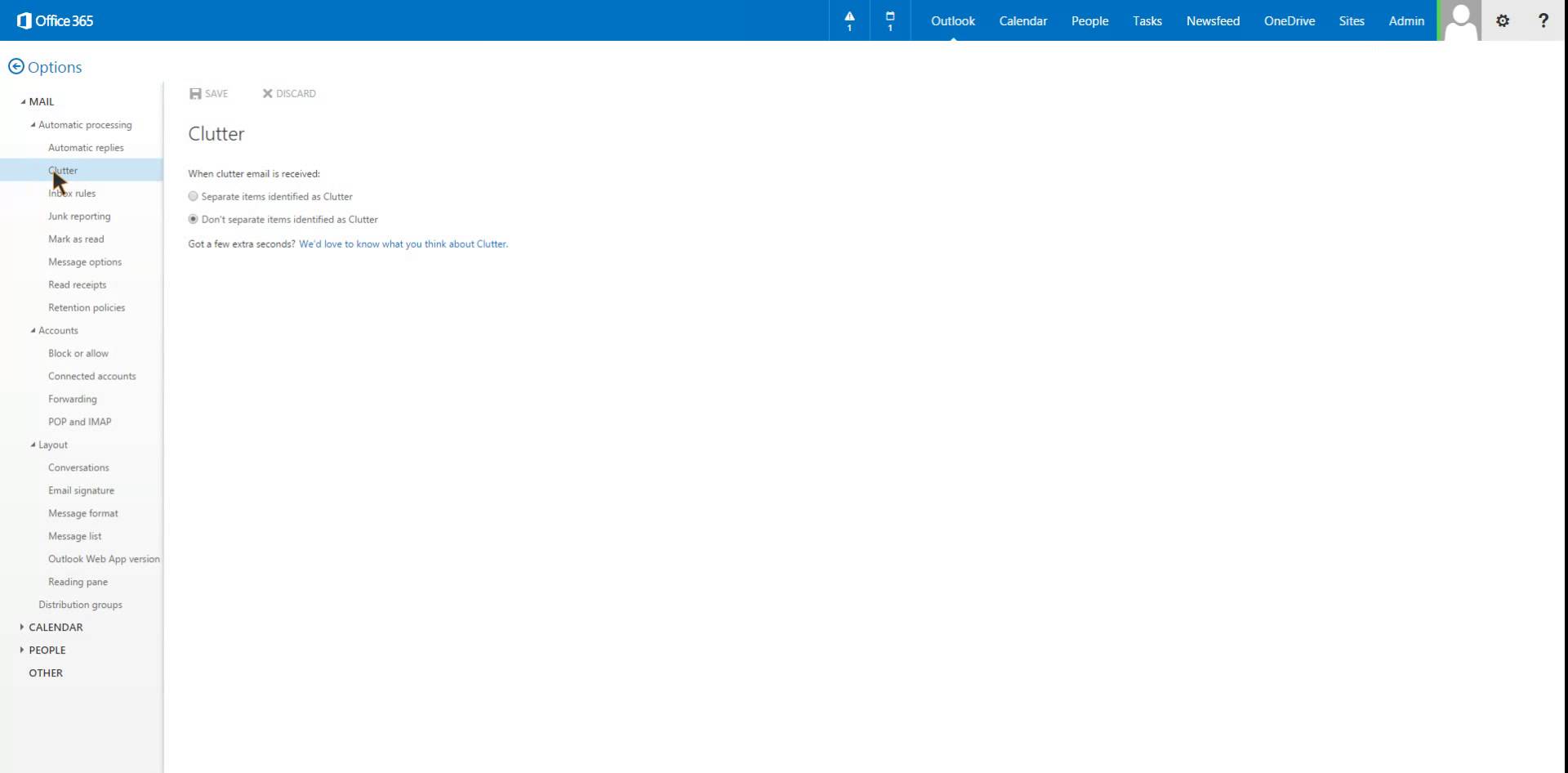
  • On the left side there will be a main selection called MAIL and underneath some sub sections. The third one down is titled Clutter. Click on Clutter
  • Under Clutter you have the options to “Separate items identified as clutter” or “Don’t separate items identified as clutter
  • Click “Don’t separate items identified as clutter” to prevent your emails from being moved
  • Click Save


Unfortunately once the Clutter feature has been turned off, all emails that were sent to that folder will not automatically go back to into your inbox folder. Each email will need to be manually moved into the desired folder.

Here are some FAQ and answers to common Office 365 Clutter questions:

Will Clutter start working immediately?  Yes, once it is enabled for a mailbox. It takes time for a good set of signals to be collected for Clutter to learn what is important to an individual user. You can help accelerate the process by acting as a form of “manual Clutter” just after the feature is enabled by moving items into the Clutter folder or by marking messages as Clutter. Clutter will learn from your actions and will begin to mimic them as new mail arrives. In general, the more messages you mark or move, the more evidence you provide for Clutter to analyze and the quicker it will be in understanding how you process email. It’s also fair to say Clutter might require to observe how you process a couple of hundred messages before it is really useful.

What administrative controls exist for Clutter?  The current implementation is a user-initiated function. In other words, all users have to enable or disable Clutter in the Options menu. There is no way for an administrator to enable or disable Clutter for a selected mailbox. Also, Clutter only works for user mailboxes. It doesn’t work for shared mailboxes or group mailboxes.

What will end up in the Clutter folder?  The simple answer is any message that is determined by Clutter to be unimportant based on its understanding of your priorities. In reality, it will differ from person to person because everyone processes their Inbox differently.

What about Junk mail then – isn’t Clutter just another form of junk mail processing?  Not at all. The decisions made to mark messages as Junk Mail come from a massive collection of known spam that Microsoft has built over time. That effort to identify and classify the characteristics of spam from new mail continues but the decisions that result are generic and apply to everyone. Clutter is very personal because machine learning takes the signals provided by the mailbox owner and use them to decide whether a message should be moved into the Clutter folder.