
Workstation and server support for Orange County businesses
Support the computers employees use and the systems the business shares
A slow workstation can hold up one employee. A server problem can interrupt shared files, applications, printing, authentication, backup jobs, or an entire office workflow. Apex IT Solutions provides remote and onsite support for business desktops, laptops, servers, and supported peripherals across Orange County. The work begins by defining the symptom, who is affected, what changed, and which business process needs to be restored or improved.
Support can include hardware, software, operating-system, performance, and connectivity diagnosis; workstation upgrades and replacement planning; server installation, configuration, troubleshooting, optimization, and monitoring; backup coordination; and communication with network, cloud, application, and equipment vendors. The appropriate path depends on evidence from the actual environment—not a promise that every problem has the same fix.
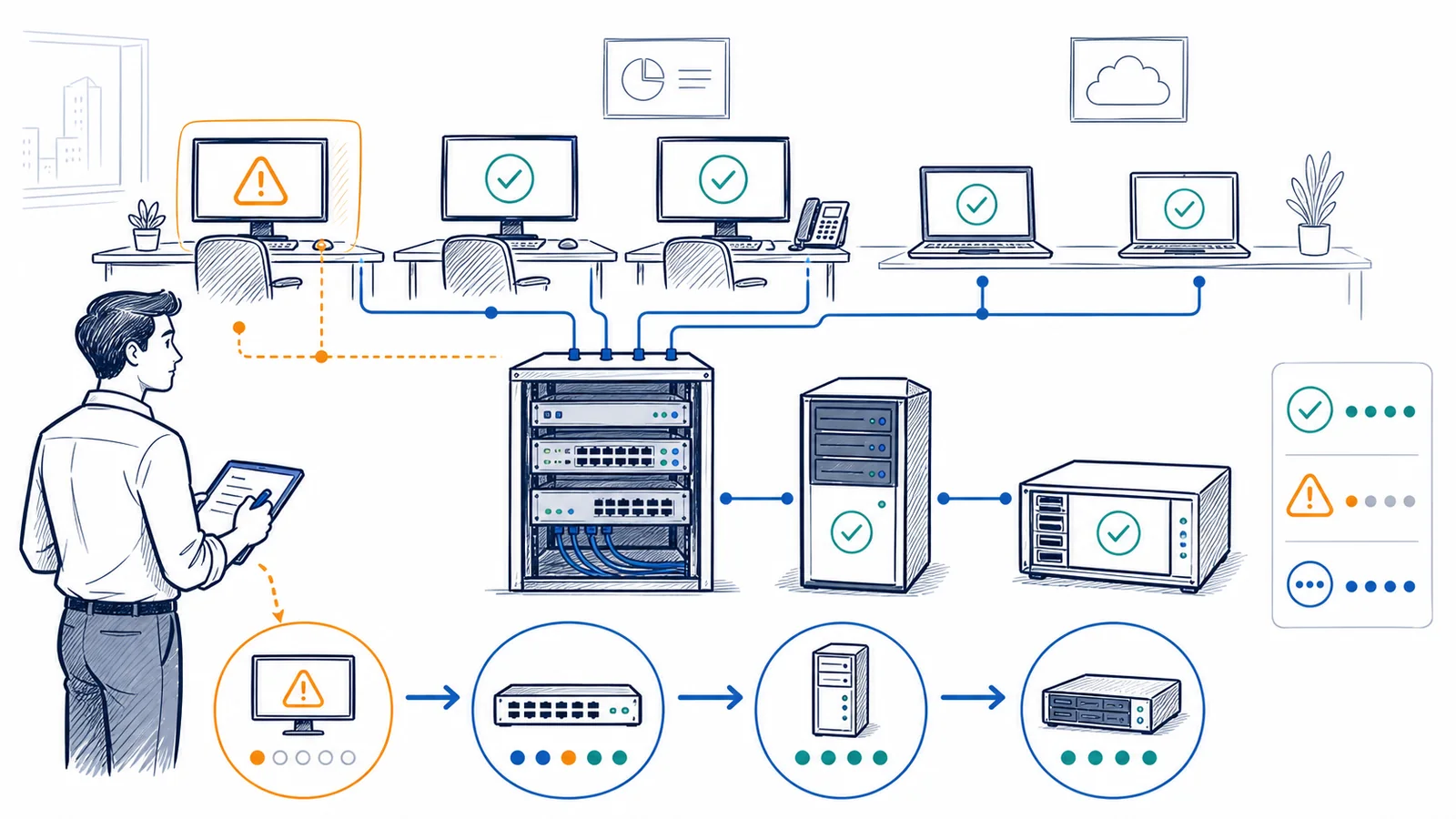
Warning signs that deserve structured troubleshooting
One isolated error may be straightforward. Repeated symptoms, several affected users, or a problem involving a shared system call for evidence-based diagnosis across the computer, server, network, application, and vendor layers.
- Startup, sign-in, or application launches keep getting slower. Resource limits, storage health, software conflicts, background tasks, updates, user-profile issues, or a shared service may be involved.
- Computers freeze, restart, or display recurring errors. Capturing the timing, message, workload, and recent changes is more useful than repeatedly power-cycling the device.
- Several employees lose the same file, printer, or business application. A shared server, permission, application service, network path, name-resolution issue, or vendor platform may be the common dependency.
- A server reports low storage, failed services, update trouble, or backup warnings. These signals should be assessed before capacity or maintenance issues affect more workflows.
- One office workaround has become the normal process. Repeatedly reconnecting drives, moving files manually, sharing logins, or bypassing a failed printer can conceal a larger support and documentation gap.
- Hardware is aging without a replacement plan. Unsupported software, limited parts, insufficient capacity, and application compatibility can turn a routine failure into a rushed business decision.
- A new application or device performs poorly after installation. Its requirements may not match the workstation, server, storage, network, permissions, database, or vendor configuration.
- Nobody can explain what the server does or what its backup covers. Unknown roles, owners, dependencies, credentials, and recovery steps increase uncertainty during a change or outage.
Workstations, servers, and dependencies in plain English
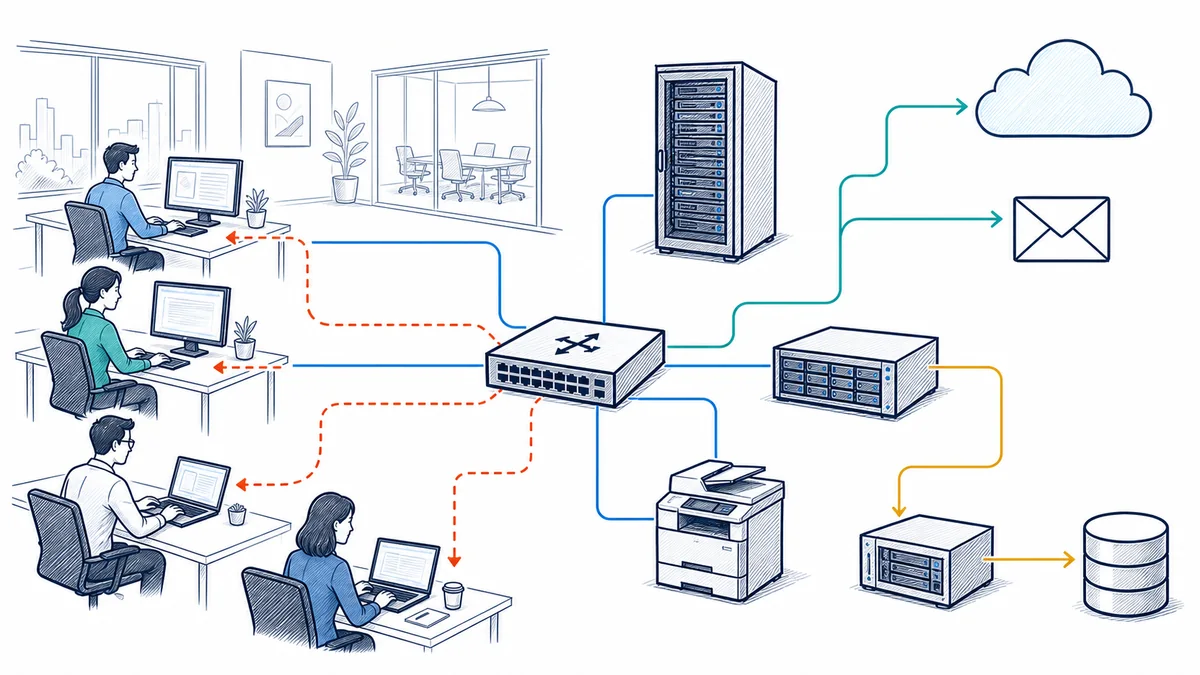
A workstation is the desktop or laptop an employee uses to do business work. Its operating system runs local software and connects the employee to shared resources. A workstation problem may be limited to that device, but it can also be the first visible sign of trouble with an account, network, server, cloud platform, printer, or line-of-business application.
A server provides a shared function to other systems. Depending on the business environment, that function might be file storage, account authentication, application hosting, database access, printing, backup coordination, or another internal service. Some businesses use physical servers onsite; others use virtual servers, cloud-hosted systems, vendor platforms, or a mixture. Calling something “the server” does not identify its role, owner, backup, or failure impact.
A dependency is anything a workflow needs in order to work. Opening a shared document may depend on the employee’s computer, account permissions, office network, server storage, application version, and a healthy file. Printing may depend on the workstation, print settings, server queue, network, printer, and supplies. Troubleshooting becomes more accurate when that chain is mapped and tested instead of assuming the most visible device caused the problem.
What business computer and server support includes—and what it does not
An agreed support or project scope may include
- Troubleshooting supported workstation and server hardware, operating systems, software, services, performance, storage, connectivity, and configuration.
- Remote assistance for reachable systems and onsite assessment when equipment or the local environment requires direct inspection.
- Workstation setup, supported updates, upgrades, replacement planning, data-transfer coordination, and connection to approved business resources.
- Server installation, configuration, maintenance planning, optimization, monitoring, role review, storage planning, and troubleshooting.
- Coordination for server and workstation backups, restore testing where included, shared files, printers, and supported peripherals.
- Documentation and coordination with network, cloud, licensing, hardware, application, internet, or specialized equipment vendors.
It does not automatically include or promise
- Assurance of a repair, fixed completion time, uninterrupted operation, successful recovery of every file, or prevention of every future failure.
- Support for every operating system, application, device, peripheral, legacy platform, vendor product, or unsupported configuration.
- Disassembly or repair beyond safe supported replacement work, or any work on energized, damaged, swollen, wet, contaminated, or otherwise hazardous hardware.
- Software licenses, subscriptions, replacement hardware, manufacturer warranty decisions, cloud charges, or third-party labor unless specifically stated in the approved scope.
- Continuous technician attention simply because automated monitoring is configured; monitoring coverage and human support availability are separate service terms.
- Changes outside authorization, access to data beyond the business purpose, or work that conflicts with an application vendor, warranty, safety requirement, or client policy.
Choose a starting path based on the business situation
A computer or shared system is failing now
Start with the affected users, exact symptoms, error messages, timing, business impact, and recent changes. Remote triage may separate a device problem from an account, network, server, application, or vendor issue. If hands-on work is required, those findings help define what should be checked onsite.
Small problems keep returning
Review incident patterns rather than treating each report as unrelated. Repeated freezes, storage warnings, profile failures, printer interruptions, or application delays may point to capacity, maintenance, configuration, lifecycle, or shared-system concerns. A documented baseline creates a better path than another temporary workaround.
We need to decide whether to repair, upgrade, or replace
Compare the diagnosed fault with equipment age, warranty status, performance needs, parts availability, software support, security updates, application compatibility, downtime risk, migration effort, and expected useful life. The least expensive immediate option is not always the lowest-disruption business choice.
We are installing or changing a server
Define the server’s role, users, applications, storage, permissions, network needs, backup coverage, power and physical requirements, vendor involvement, maintenance approach, and migration sequence. Testing must verify the real business workflow, not only that the server turns on or responds to a basic connection.
We lack inventory, documentation, or monitoring
Begin with discovery. Identify workstations, servers, operating systems, important software, hardware age, server roles, storage, backup jobs, dependencies, vendor ownership, and known support limitations. Monitoring can then be selected for meaningful conditions rather than added without an operating plan.
Our internal team or application vendor needs infrastructure help
Establish responsibility before making changes. Apex can assist with supported computers, servers, networks, backup dependencies, and local implementation while an internal administrator or application vendor retains ownership of its platform. A shared plan should state prerequisites, test owners, escalation contacts, and rollback decisions.
Remote support and onsite work solve different parts of the problem
Remote support is appropriate when the affected system is powered on, reachable, safe to operate, and available through an authorized access method. A technician may review reported behavior, event information, service status, resource use, settings, updates, permissions, storage, application behavior, and available monitoring or backup records. Remote work can resolve suitable software and configuration issues or narrow the likely cause before an onsite visit.
Remote access cannot reconnect a loose cable, inspect physical damage, replace a drive, add memory, move equipment, test a power source, clean an obstructed airflow path, or examine a server that is powered off and unreachable. A powered-off device should not be repeatedly restarted when there are signs of liquid exposure, burning odor, smoke, heat damage, electrical damage, battery swelling, unusual mechanical drive sounds, or other unsafe conditions. Disconnect it only if that can be done safely, avoid opening or energizing it, and arrange an appropriate hands-on assessment. Safety and protection of potentially recoverable data take priority over forcing another startup.
Onsite service is useful for physical inspection, hardware installation or replacement, workstation deployment, server rack and cable checks, peripheral troubleshooting, local performance testing, equipment moves, and issues that cannot be isolated remotely. Some engagements combine both methods: discovery and preparation occur remotely, approved hardware work occurs onsite, and configuration review and follow-up testing continue remotely.
Monitoring is visibility, not a human-availability promise. Configured tools may check selected server services, storage, resource use, backup status, or reachability and create alerts when defined conditions occur. They do not diagnose every root cause, repair hardware, confirm that every user workflow works, or mean a technician is continuously watching. What is monitored, alert thresholds, notification routing, review timing, escalation, and available support must be defined in the selected service.
Computer and server support options
Use these service areas to identify a practical starting point. Where a service has a dedicated page, the descriptive link provides a narrower explanation; this hub remains the primary page for onsite business computer support.
Arrange onsite business computer support
Diagnose and address supported workstation, hardware, software, performance, peripheral, and local-environment issues that require hands-on attention at an Orange County business.
Use remote business IT support
Review reachable computers, software, accounts, settings, and reported symptoms through an authorized remote method when the issue does not require physical work.
Plan business server support
Support installation, configuration, maintenance, shared roles, troubleshooting, backup coordination, and vendor dependencies within the agreed server environment.
Define server monitoring
Select meaningful checks for supported server conditions and document alert handling, notification, escalation, and human support boundaries separately.
Review server optimization
Assess workloads, storage, resource use, services, configuration, maintenance, application requirements, and constraints before recommending supported improvements.
Trace computer and server network dependencies
Test the path among workstations, servers, printers, switches, Wi-Fi, firewalls, internet service, and destination applications when connectivity is part of the symptom.
Plan IT hardware procurement
Match supported workstation and server hardware choices to business workloads, compatibility, lifecycle, deployment, warranty, licensing, and replacement requirements.
Coordinate backup and disaster recovery
Identify important systems and data, backup coverage, retention, restore dependencies, testing needs, and practical recovery objectives without assuming every failure is recoverable.
A support process tailored to workstations and servers
-
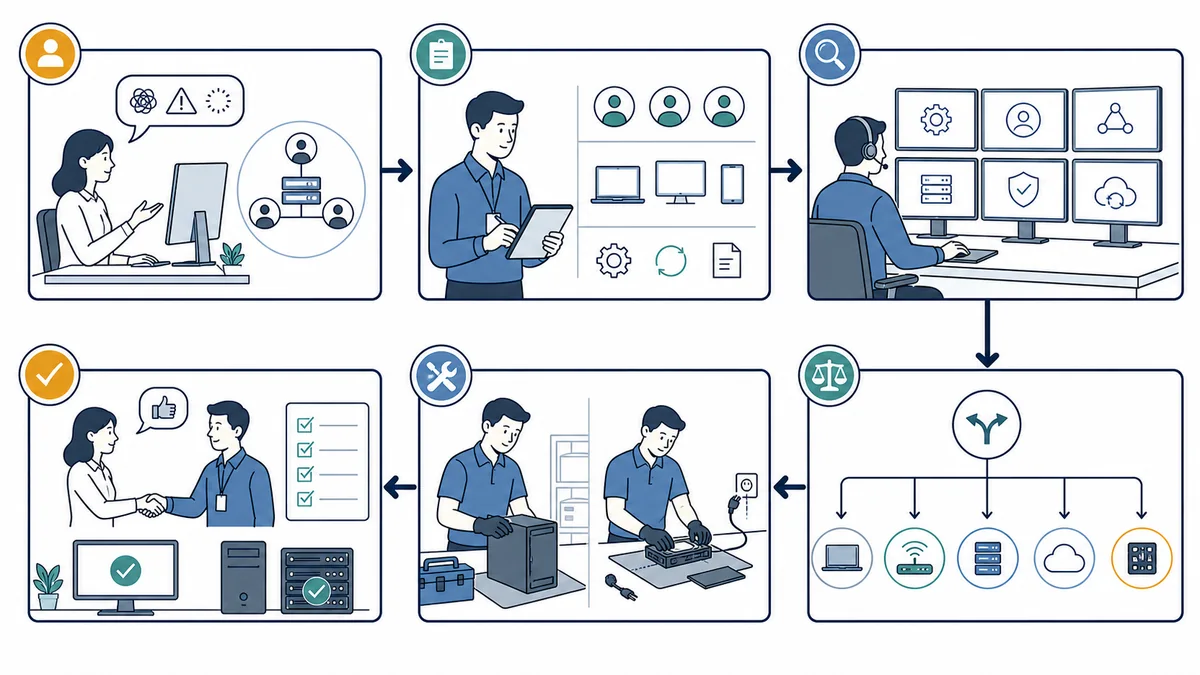
Diagnose the symptom and its business impact
Identify the device or server role, affected users, interrupted workflow, error details, timing, recurrence, recent changes, and available access. Review evidence such as logs, service state, resource use, storage, update history, monitoring, backup status, and known vendor notices where relevant. Diagnosis distinguishes observation from likely cause and records uncertainty that still needs testing.
-
Plan the safest practical response
Define immediate stabilization, corrective work, replacement or upgrade options, backup precautions, authorization, outage considerations, required hardware or licensing, vendor tasks, and a rollback path where appropriate. The plan should account for server roles and workstation dependencies so that fixing one component does not unexpectedly interrupt another service.
-
Perform the approved work
Complete only the authorized scope. Work may include supported configuration changes, updates, service correction, storage cleanup, workstation setup, hardware replacement, server installation, application or printer reconnection, backup coordination, or vendor-assisted changes. New findings that materially change risk, cost, or scope should be raised before continuing.
-
Test the device, shared service, and business workflow
Confirm startup, sign-in, resource health, connectivity, permissions, expected applications, shared files, printing, server services, backup jobs, or other affected functions as applicable. A basic technical check is not enough when the original problem appeared only during a specific workflow. An authorized business user may need to validate the result in the real application.
-
Document changes, results, and remaining decisions
Record the symptom, diagnosis, approved actions, equipment or settings changed, tests completed, known limitations, vendor ownership, and follow-up recommendations. Useful records may also update inventory, server roles, warranties, backup coverage, dependencies, and lifecycle priorities. Credentials and other sensitive administrative details should remain in an approved secure system.
What a coordinated support approach can improve
No support process can eliminate every hardware failure, software defect, vendor interruption, human error, security event, or recovery limitation. Careful diagnosis, planning, testing, and documentation can still improve how the business manages its technology.
- More focused troubleshooting: defining the workflow and testing dependencies can reduce guesswork and repeated changes that do not address the cause.
- Clearer repair and replacement decisions: lifecycle, supportability, compatibility, downtime, and migration factors give decision-makers more context than purchase price alone.
- Better shared-system visibility: known server roles, storage, applications, owners, backup coverage, and dependencies can make future support more efficient.
- More controlled changes: authorization, prerequisites, backup precautions, testing, and rollback planning can reduce avoidable disruption during updates or migrations.
- Improved vendor coordination: documented symptoms and responsibility boundaries can help hardware, application, cloud, internet, and equipment vendors work from the same facts.
- More useful lifecycle planning: inventory, warranties, software support, resource trends, and business priorities can support phased budgeting and replacement rather than emergency purchasing.
Computer and server needs vary by business environment
Professional offices, law firms, and accounting firms
Employees may move constantly among document systems, shared files, printers, cloud services, line-of-business applications, video meetings, and remote access. Support should distinguish a single workstation fault from a permissions, server, network, cloud, or application-vendor issue and protect the firm’s approved handling procedures during service.
Medical and dental practices
Workstations and servers may depend on practice-management, imaging, printing, scanning, and vendor-supported systems. Changes should be coordinated with application and equipment requirements and appropriate technical safeguards. Apex can assist with supported IT controls and documentation, but does not make legal compliance determinations or replace qualified legal, compliance, or audit advisers.
Machine shops and production businesses
Office computers, file shares, estimating or scheduling applications, printers, production-adjacent workstations, and vendor equipment can have different support owners and environmental constraints. Dust, heat, vibration, network reach, and specialized software may affect decisions. General IT support does not imply repair or control of industrial machinery.
Growing and multi-location businesses
Expansion can produce mixed hardware generations, inconsistent workstation setups, duplicate vendors, unknown server roles, and different local network conditions. Shared inventory, deployment standards, documentation, remote-support methods, and lifecycle priorities can improve coordination while allowing necessary site-specific differences.
Computer and server support for Orange County businesses
Apex IT Solutions supports business computer and server environments in Orange County, including offices and facilities in Anaheim, Irvine, Santa Ana, Costa Mesa, Fullerton, Brea, and Buena Park. Remote support can address suitable software, configuration, account, and diagnostic work when systems are reachable. Onsite service is available when a technician needs to inspect equipment, install or replace hardware, test local connections, deploy workstations, or work directly with the physical server environment.
The right approach depends on the workplace. A professional suite, healthcare practice, law office, accounting firm, production facility, and multi-site company can have different access procedures, application vendors, equipment conditions, maintenance windows, and operational priorities. Scope should reflect the actual environment rather than a generic city template. See the Orange County business IT service area for broader coverage information.
Computer and server support frequently asked questions
What information should we provide when requesting computer support?
Share the business location, affected device or server, number of affected users, exact symptoms and messages, when the problem began, whether it is intermittent, recent changes, and the workflow that is blocked. Include the application or hardware vendor when relevant. Do not send passwords or sensitive data through an unapproved channel.
Can the problem be handled remotely?
Many reachable software, account, setting, performance, service, and configuration issues can be assessed remotely through an authorized method. Physical damage, disconnected or powered-off hardware, component replacement, equipment moves, rack work, and some peripheral or network faults require onsite attention. Remote triage can still help prepare a focused visit.
How do we decide whether to repair, upgrade, or replace a business computer?
Consider the diagnosed fault, age, warranty, parts, performance, software and security-update support, application compatibility, downtime, migration effort, and expected useful life. An upgrade makes sense only when it addresses the actual constraint and leaves a supportable system. Assessment is required before recommending a path.
What is included in server support?
Depending on the agreed scope, server support may include installation, configuration, operating-system and service troubleshooting, maintenance planning, storage review, performance analysis, monitoring, optimization, backup coordination, shared-role support, documentation, and vendor communication. Supported platforms, licensing, application ownership, access, and response arrangements must be defined for the client environment.
Does server monitoring mean someone is watching at all times?
No. Automated tools can check selected conditions and create alerts according to configuration. They do not provide continuous human observation or automatically establish technician availability. Monitoring coverage, thresholds, notification routing, review timing, escalation, and support availability are separate terms that should be documented.
Can Apex support our printers and specialized business applications?
Apex can troubleshoot and coordinate supported printers, peripherals, and application dependencies within the approved scope. The device manufacturer or application vendor may remain responsible for proprietary hardware, software, databases, licensing, updates, or warranties. Clear responsibility and an authorized vendor contact help avoid conflicting changes.
What should we do if a computer or server will not power on?
Record what happened before shutdown and avoid repeated restarts if there is smoke, a burning odor, liquid exposure, battery swelling, electrical damage, unusual mechanical sounds, or excessive heat. Do not open or energize unsafe equipment. If safe, leave it powered off and request assessment. Forced starts can worsen hardware damage or reduce data-recovery options.
Can support ensure that our data will be recovered?
No. Recovery depends on the failure, storage condition, encryption, overwrite activity, available backups, application consistency, and other factors. Support can assess accessible data, coordinate backups and restores within scope, and identify when a specialized provider may be needed, but not promise that every file or system can be recovered.
How do we request computer or server support in Orange County?
Use the contact page to describe the location, affected users, device or server role, business impact, symptoms, and timing. You may also call (800) 275-6513. Apex can determine whether remote triage, onsite service, a server assessment, or project planning is the appropriate next step.
Start with the affected workflow, not a guess about the failed part
Whether one employee has a recurring workstation problem, a shared server is creating uncertainty, hardware needs replacement, or the business lacks documentation, begin with the symptom, operational impact, and dependencies. Apex IT Solutions can assess the environment and define an appropriate path for remote support, onsite work, server service, monitoring, optimization, hardware planning, or vendor coordination.